
 Krasimir Kazakov
8d32c35f8f
feat: streamline Jellyfin album controls and chrome |
13 小时之前 | |
|---|---|---|
| android | 4 天之前 | |
| assets | 5 天之前 | |
| docs | 13 小时之前 | |
| lib | 13 小时之前 | |
| releases | 4 天之前 | |
| test | 13 小时之前 | |
| tool | 6 天之前 | |
| .gitignore | 6 天之前 | |
| .metadata | 1 周之前 | |
| AGENTS.md | 13 小时之前 | |
| README.md | 13 小时之前 | |
| analysis_options.yaml | 1 周之前 | |
| pubspec.lock | 1 周之前 | |
| pubspec.yaml | 4 天之前 |
README.md
CarDash
A calm, configurable Android car dashboard launcher, built with Flutter.
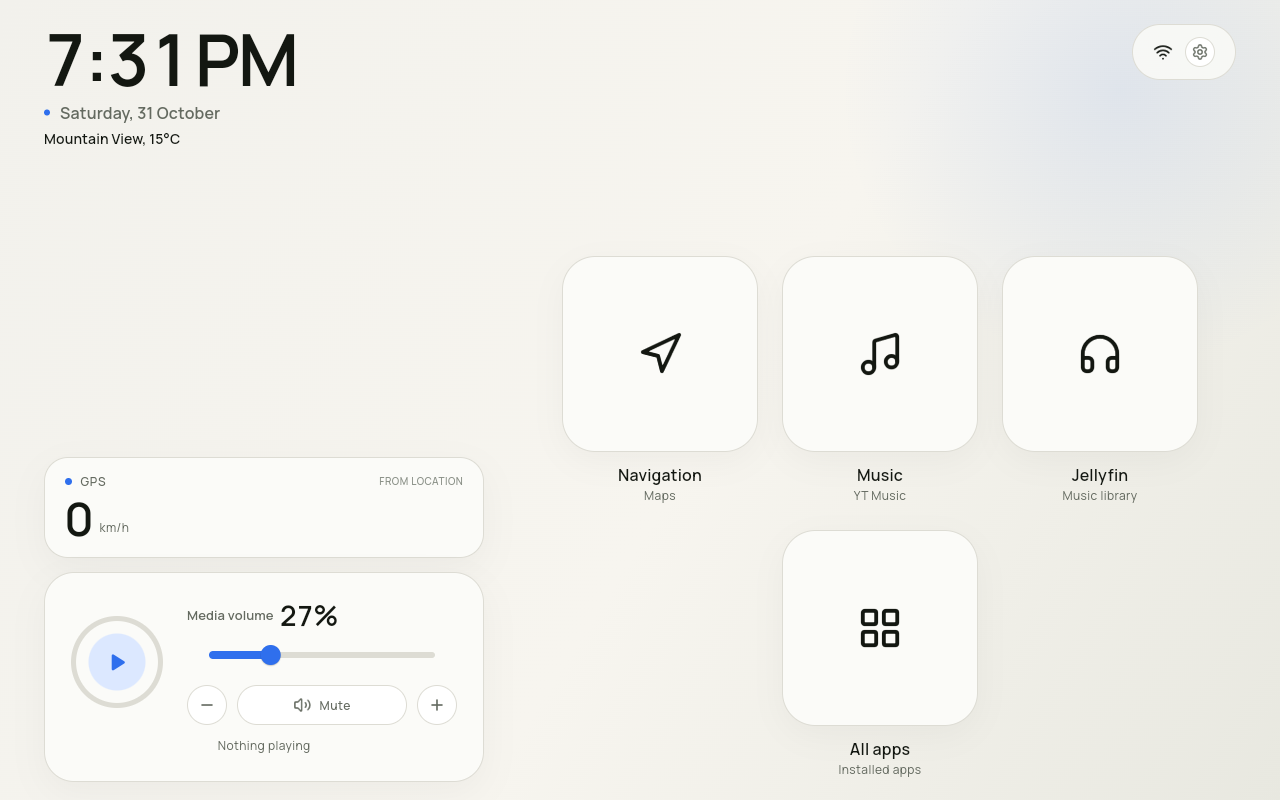
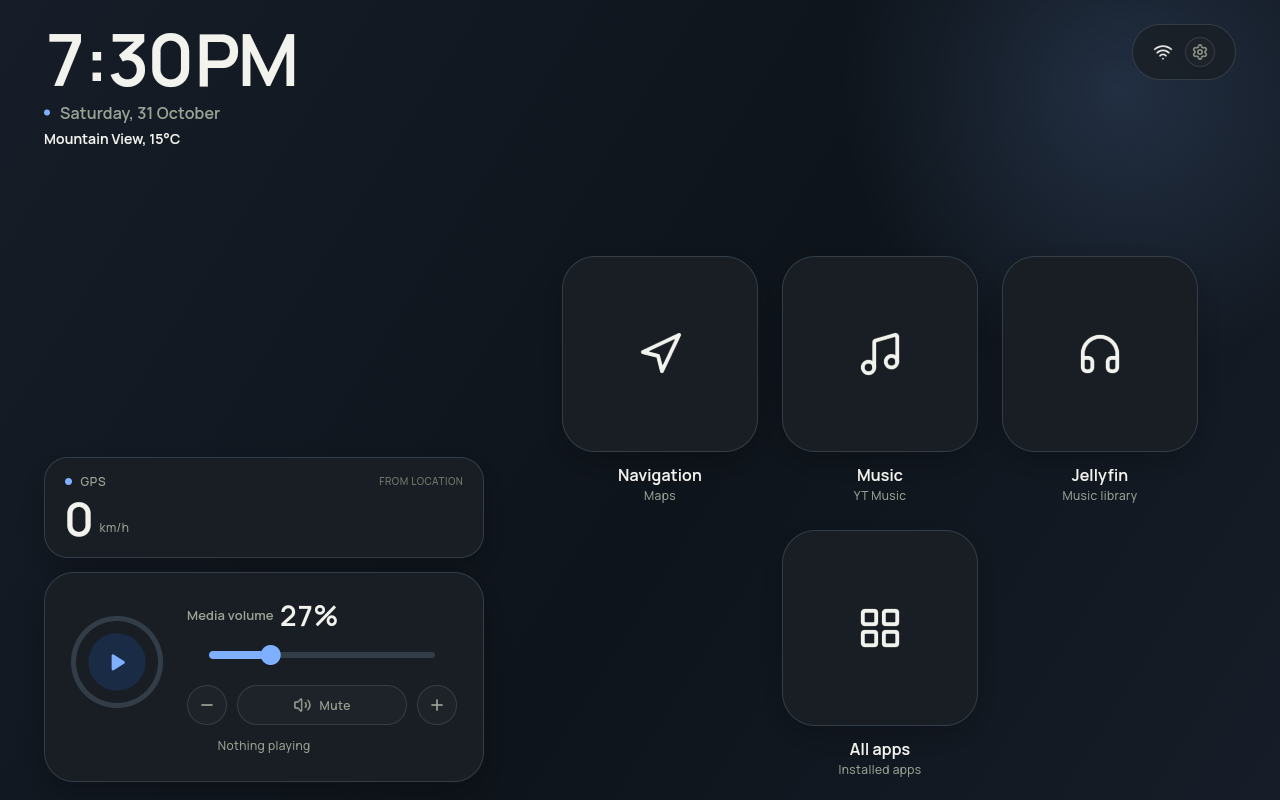
CarDash replaces the tablet home screen with one landscape page: a large clock, battery and Wi-Fi status, a now-playing media card, and up to 16 buttons — Navigation, Music, optional Jellyfin, Radio, All apps, plus any apps you pin from All Apps. The fixed slots can be shown, hidden and assigned to installed apps; Jellyfin is a built-in music source when configured. Settings opens from the gear next to Wi-Fi. External apps open full-screen using the normal Android launcher mechanism. No overlays, no root, no kiosk setup.
Verified on Android 15 and Android 10 tablet emulators at 1280×800, 1280×720 and 1024×600. Runs on a physical Android 17 HyperOS tablet. OBD-II UI/parser is implemented; the ELM327 socket path still needs a real-car test. Landscape only.
Download
- Gogs release page — published releases
- cardash-android-1.2.2.apk — universal Android release
- cardash-android-1.2.1.apk — previous release
- SHA-256 and build details: releases/README.md
Gogs limits release attachments to 32 MB, so the 59 MB universal APK is linked directly from the repository.
Screenshots
| Light | Dark |
|---|---|
 |
 |
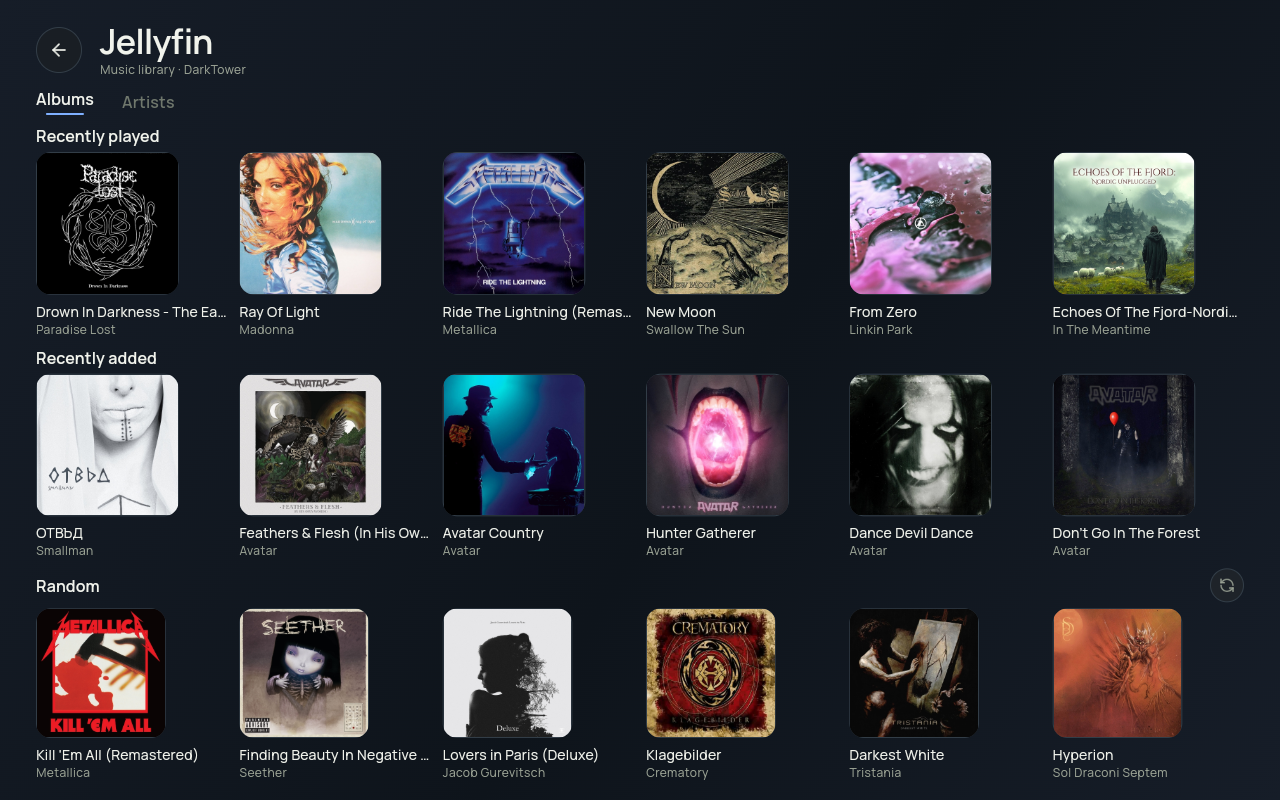
Jellyfin
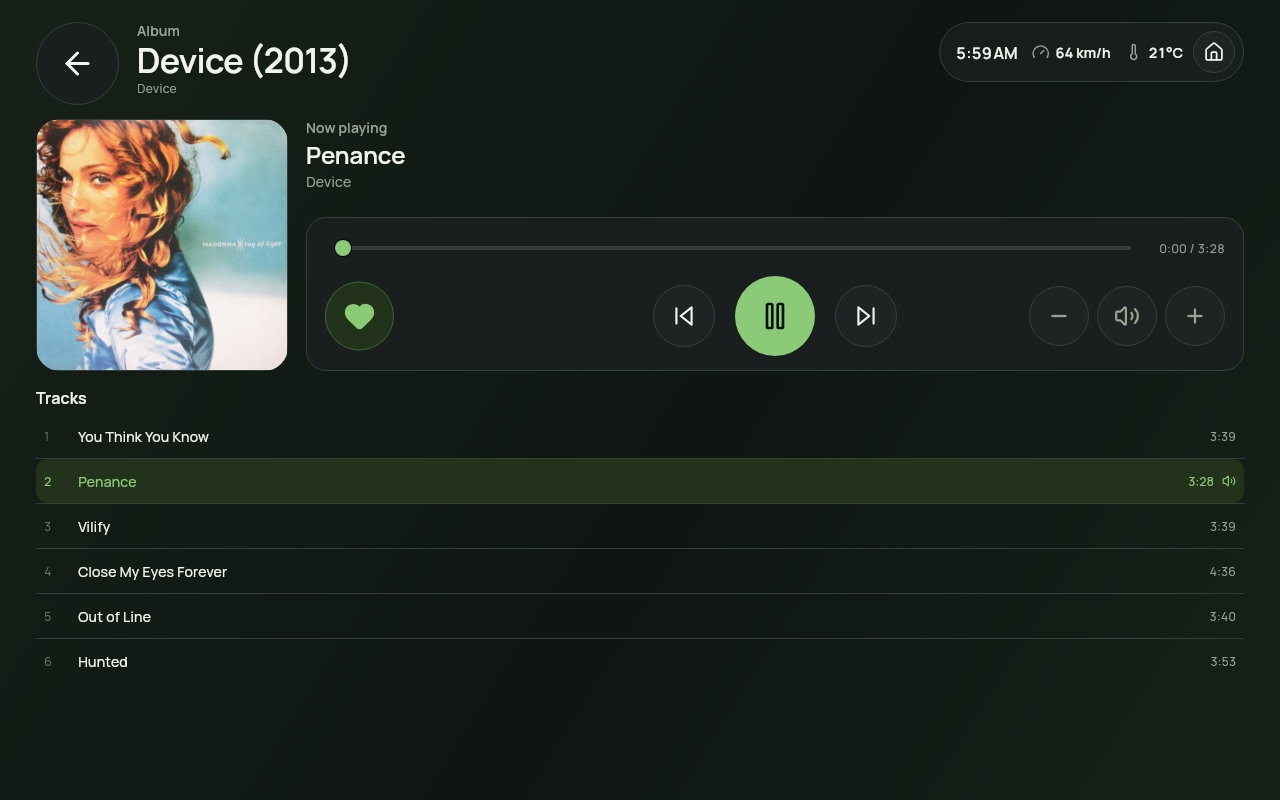
| Dashboard | Album page |
|---|---|
 |
 |
Jellyfin: playing on Home · grouped genre picker · Jellyfin settings · 1024×600 dashboard · 1024×600 album page


Also: Home with top-right Settings · Home at 1024×600 · All apps · app picker · Settings · accent & buttons · Settings · Media access · Now playing · Jellyfin · 1280×720 · GPS speed · Update dot · Update dot close-up · Mocked OBD · 1280×720 · Mocked OBD · 1280×800 · Night mode · Blue accent · user-app icon on Home · pinned-app menu · change-icon grid · PIN lock · 1024×600 layout


The two Mocked OBD images are documentation renders with a simulated adapter state (82 km/h, 34% throttle, 7.4 L/100 km, Outside 17°C). They are not live vehicle data.
Features
- One home screen — no pages, no top bar, no bottom dock; information and controls live on the home page.
- Large clock and date with the device's 12/24-hour preference.
- Battery, charging and Wi-Fi status, with one switch to hide the battery level and charging bolt.
- OBD-II car data — optional Bluetooth Classic ELM327 adapter. A dedicated OBD-II Settings card holds the adapter status, paired-device picker and Bluetooth actions. The live card shows speed, a throttle bar and rolling 5 km fuel economy from the ECU fuel rate (with a petrol MAF fallback), plus ambient temperature when the adapter provides it.
- Speed card with source choice — Settings → Speed shows or hides the speed card and, while an adapter is selected, chooses OBD-II or GPS. GPS is the fallback when OBD speed is off or unavailable; it reads 0 km/h when stationary, and enabling speed with GPS as the source asks for location permission.
- Temperature row with source choice — Settings → Temperature shows or
hides the outside temperature and, while an adapter is selected, chooses
OBD-II or GPS + weather. Enabling temperature asks for location permission
for the Open-Meteo fallback; if denied, OBD temperature still works. The row
reads
Outside, 7°Cfor OBD orSofia, 7°Cfor weather, and turns red below 3°C. - Now-playing media card — the circular ring shows song progress around a play/pause button. The song title and artist scroll along the bottom; paused audio stops the scroll and holds its position. When nothing is playing it reads Nothing playing. The volume slider, −/+, and Mute pill remain.
- Jellyfin — optional music-server integration in Settings → Jellyfin. Turn it on, enter the server URL and pair it with a Quick Connect code; the saved token is reused on later starts. Once configured, turn on the Jellyfin Home button in Settings → General → Home buttons. The tile opens a full-screen dashboard with Recently played, Recently added and Random album rows (six cards when they fit, five otherwise), grouped genre selection and a full album page with the cover and controls above a track list, a seekable song-progress slider, large previous / play-pause / next transport, and three separate volume buttons. The navigation card is bottom-aligned with the album art when the control column fits. Both Jellyfin pages show a top-right strip with the time, current speed, current temperature and a Home button. Playback runs in CarDash through Media3, keeps playing in the background, shows a media notification when allowed, pauses on audio-focus loss and reports to Jellyfin. Selecting a Random album re-rolls the row. The home equalizer is exclusive: Jellyfin while it plays, Music only for another app. A rejected token is cleared and asks for pairing again; an unreachable server keeps the token and retries with backoff. The dashboard also has a Favorites tab backed by Jellyfin favorites (a scrollable 5/6-column grid), with a heart on the album page to add or remove the album. If an album is playing, tapping the Jellyfin Home tile opens that album directly; Back returns to Albums. A Streaming quality setting selects Direct or 320/256/192/128 kbps MP3 transcoding; see Settings → Jellyfin.
- Update check — on startup, CarDash queries the public Gogs release list without blocking the dashboard. Settings → Updates shows the current version, a Check button, and an Update action that downloads the APK and opens Android’s installer. Android still requires confirmation and a one-time “install unknown apps” allowance; silent installation is not attempted. A small yellow dot appears on the Settings gear whenever an update is available.
- Now-playing access — Settings → Media grants Android notification access, used only to read the active media session’s title, duration and position. CarDash never reads or stores notification content.
- Configurable home buttons — switches in Settings show or hide Navigation, Music, Jellyfin and Radio; the Jellyfin switch is disabled and off until the integration is configured. All apps is always the last button; Settings sits next to Wi-Fi in the top-right status area and is no longer a grid tile.
- Pin any app from All Apps — long-press an app to add it to Home. The home page holds up to 16 buttons including All apps; the grid shrinks as it fills and stays anchored to the bottom edge.
- Edit a pinned app — long-press it on Home for Rename, Change icon and Remove. Pinned apps show their own icon by default. Rename changes only the Home label; Change icon offers Default plus 29 monochrome line icons (white on dark, black on light); Remove takes effect without confirmation. Re-add the app from All Apps.
- One-time launcher tip — the first run shows a short notification that the default-launcher setting lives in Settings. It is not shown again.
- All apps — searchable grid of every launchable app, launched full-screen.
- Media-aware Music and Jellyfin tiles — the stylized music icon shows a small animated equalizer while another app is playing; the Jellyfin tile shows it only while CarDash's Jellyfin player is playing. The two are mutually exclusive. CarDash ignores its own stale MediaSession when Jellyfin pauses, so the Music tile does not flash while the system snapshot catches up. The tile labels are clipped to the rounded button width so long album names cannot widen the grid.
- Six accent colors — Green, Blue, Amber, Rose, Violet or Teal, applied across the whole interface.
- Prevent CarDash from sleeping — a Settings switch, on by default. Turn it off to use the system display timeout.
- Night mode — long-press an empty part of the Home background to go black with a very dim centered clock; tap anywhere to return. Long-presses on buttons and cards are unaffected.
- A short onboarding hint — the long-press hint is visible only during the first ten minutes after a fresh installation, then stays gone. Upgraded installs do not see it again.
- Light / Dark / Automatic theme. Automatic uses a fixed local-time window (default 19:00–07:00), editable in Settings.
- Optional PIN — four digits, stored as a salted PBKDF2 hash in Keystore-backed storage. It is requested only when the launcher process cold-starts, never when returning from an app.
- Standard Android home role — no overlay, kiosk or root.
- Android 10+, landscape-only, tablet-first (verified at 1280×800).
- No CarDash accounts, no telemetry, no T&C screen. Network access is used only for the optional Open-Meteo temperature fallback, the Jellyfin server you configure (library, artwork and audio), and the public release check.
Requirements
- Flutter 3.47.8 / Dart 3.13.7 (or a compatible newer stable release)
- Android SDK 36, build-tools 36
- JDK 21 for Gradle (the machine default is JDK 27, which is not validated)
- Android 10 (API 29) or newer device/emulator
- A landscape tablet or an emulator; the app locks itself to landscape
- The prepared tablet AVDs use the host GPU; a working GPU driver is recommended
- Optional: a Bluetooth Classic ELM327 adapter already paired in Android
- Optional: location access for the Open-Meteo temperature fallback
- Optional: a Jellyfin 12.x server and account for the built-in music source
The Android application ID is com.wasp.cardash_launcher. Android package
segments cannot contain hyphens, so the requested com.wasp.cardash-launcher
spelling is normalized to an underscore.
export JAVA_HOME=/usr/lib/jvm/java-21-openjdk
export ANDROID_HOME=/opt/android-sdk
export PATH="$ANDROID_HOME/platform-tools:$PATH"
Quick start
flutter pub get
./tool/check.sh

# Boot the prepared 10.1" 1280×800 Android 15 tablet (headless)
./tool/emulator.sh 35

# Build, install, and make CarDash the HOME app
./tool/install.sh debug
If the emulator does not yet exist on another machine, create it with:
sdkmanager "system-images;android-35;google_apis;x86_64"
avdmanager create avd -n cardash_tablet_api35 \
  -k "system-images;android-35;google_apis;x86_64" \
  -d "10.1in WXGA (Tablet)"
The repository also has an Android 10 AVD (cardash_tablet_api29) for
minimum-version checks.
Manual install
flutter build apk --release
adb install -r build/app/outputs/flutter-apk/app-release.apk
adb shell cmd role add-role-holder android.app.role.HOME com.wasp.cardash_launcher
adb shell am start -a android.intent.action.MAIN -c android.intent.category.HOME
On a real tablet, use Settings → General → Home app → Set as default and accept the system prompt. Android will not let an app force itself into the home role silently. CarDash no longer keeps a home-role banner on the dashboard; the first run shows a one-time tip pointing to this setting.
Normal-app mode and recents
CarDash can also be used without the HOME role. The launcher activity is included
in the recents/overview list, so it can be switched back to like a normal app.
resumeWhilePausing and alwaysRetainTaskState keep the return transition and
task state sane. Android may still kill any background app; CarDash deliberately
does not add a keep-alive foreground service, persistent flag or battery
exemption request. On vendor firmware, set CarDash to No battery restrictions
and allow autostart if the system keeps killing it.
When CarDash does hold the HOME role, Android may still filter the home task out of recents; press Home to return. The recents entry is primarily useful in normal-app mode. For the Home transition and crash investigation, being the HOME app is still the relevant configuration.
Using CarDash
| Action | Result |
|---|---|
| Tap Navigation / Music / Radio | Open the assigned app full-screen |
| Tap Jellyfin | Open the playing album if one is active; otherwise the dashboard (Albums) |
| Tap Jellyfin → Favorites | Browse favorited albums from Jellyfin |
| Album page heart | Add or remove the album from Jellyfin favorites |
| Long-press Navigation / Music / Radio | Pick a different installed app |
| Long-press Jellyfin | Nothing; Jellyfin is a built-in source |
| Tap an unassigned shortcut | Open the app picker |
| Settings → Accent | Pick Green, Blue, Amber, Rose, Violet or Teal |
| Settings → Battery & charging | Show or hide battery level and charging bolt |
| Settings → Prevent CarDash from sleeping | Keep the display on, or use the system timeout |
| Long-press an empty part of Home | Enter black night mode with a dim clock |
| Tap the night screen | Return to the dashboard |
| Settings → Home buttons switches | Show or hide Navigation, Music, Jellyfin, Radio |
| Settings → Jellyfin → Allow | Enable the media notification on Android 13+ |
| Jellyfin dashboard → album | Start the album and open its track list |
| Jellyfin dashboard → Random → album | Start it and re-roll the Random row |
| Long-press an app in All Apps | Add it to Home (up to 16 buttons) |
| Long-press an added app on Home | Rename, Change icon or Remove |
| Settings → OBD-II | Pick a paired ELM327 or None; open Bluetooth settings |
| Settings → Speed | Show or hide the speed card; choose OBD-II or GPS source |
| Settings → Temperature | Show or hide the temperature row; choose OBD-II or GPS + weather |
| Speed card | OBD-II when connected, otherwise GPS; 0 km/h when stopped |
| Temperature row | OBD ambient, or location weather when OBD is off/unavailable |
| Settings | Theme, accent, media access, battery, home buttons, OBD/speed/temperature, default-home role, PIN |
| All apps | Search every launchable app; tap to open, hold to pin |
| Music tile while another app plays | Shows the selected app icon + equalizer |
| Jellyfin tile while Jellyfin plays | Shows the headphones icon + equalizer |
| Circular ring | Song progress; tap the centre to play/pause |
| Song title at the card bottom | Scrolls only while playing; holds when paused |
| Screen | Stays awake while CarDash is in front |
| Mute pill | Toggle media mute |
| Slider or − / + | Set media volume |
| Hardware volume keys | Adjust the dashboard's media volume; the slider follows |
| Long-press Media volume | Show/hide raw volume diagnostics while troubleshooting a car unit |
The app hides the Android status and navigation bars while CarDash is in the foreground. Swipe from an edge to reveal them temporarily; they hide again when the app resumes.
Settings
General
- Light / Dark / Auto theme.
- Accent: Green, Blue, Amber, Rose, Violet or Teal.
- Battery & charging: one switch hides both the level and charging bolt.
- Prevent CarDash from sleeping: keep the display on; on by default.
- Auto night window (default dark from 19:00, light from 07:00).
- Home buttons: show/hide Navigation, Music, Jellyfin, Radio; live count out of
- Jellyfin is disabled and off until configured.
- Assign the app for Navigation, Music and Radio; Jellyfin is built-in, and All apps is fixed and last.
- Settings is always available from the gear next to Wi-Fi.
- Home role status and shortcut to the system prompt.
Media
- Notification access for the now-playing title, duration and progress.
- Read-only: CarDash does not read notification content.
- Without access the ring stays empty and the card shows a generic Playing / Nothing playing state.
Jellyfin
- One switch enables the optional integration. While it is off, CarDash never contacts a Jellyfin server.
- When enabled and not connected, enter the server URL (
https://host,host:portor a path such ashttps://host/jellyfin) and press Connect. - Without a saved pairing, the card shows a Quick Connect code. Open Jellyfin, choose Quick Connect, enter the code and approve it there.
- A saved pairing is reused on later starts; the card shows the server name and the signed-in user. Remove pairing clears it and turns the switch off.
- A rejected token turns the switch off, clears the token and offers Pair again.
- Without a network the card shows No internet — retrying and retries with backoff until the server is reachable again.
- Random genres: choose up to five grouped families (Metal, Rock, Jazz, Pop,
Folk and so on) in the Jellyfin card. Raw tags such as
Метъл,Рок,Melodic metalandPop-Rockare grouped into those families. If none are selected, the dashboard asks you to choose genres in Settings. - Home button: after pairing, turn on Jellyfin in Settings → General → Home buttons. The tile sits after Music and before Radio and opens the dashboard.
- Dashboard: Favorites, Recently played (derived from played tracks across your Jellyfin devices), Recently added, and Random. The Favorites tab shows the server-side favorites in a scrollable grid, six columns when they fit and five otherwise; an empty list shows No favorites. Artists is shown but disabled for a later release.
- Album page: the stacked layout is used at every screen size — cover and
controls on top, track list below. The cover is 21% of the body width, clamped
to 140–252 px. The navigation card has one seekable song-progress slider,
elapsed / total time, and a row with the favorite heart in the left corner,
large previous / play-pause / next buttons in the centre and three separate
volume buttons (−, Mute / Unmute, +) in the right corner. Its bottom is aligned
with the album cover when the control column fits; otherwise it grows below
the cover. The heart adds or removes the album through the Jellyfin API; the
Favorites tab refreshes when you return. The album heading includes the release
year in parentheses, for example
Ascension (2025), when Jellyfin provides it. The dashboard and album headers use a large back button and a top-right strip with the time, current speed, current temperature and a Home button. - Home tile: if a Jellyfin album is active, the Home tile opens that album's page with the dashboard underneath, so Back returns to the Albums tab.
- Playback: in-app Media3 with background playback, a media notification on Android 13+ when allowed, audio-focus pause/resume, and playback reporting to Jellyfin. Stops at the end of the album; no autoplay or repeat.
- Streaming quality: Direct (default) or 320/256/192/128 kbps. The bitrate choices ask Jellyfin to transcode to MP3, useful if a high-resolution source plays too slowly or quietly on a head unit. The change applies to the next album you start.
- Allow notifications asks for Android's notification permission; denying it only hides the playback notification, not playback itself.
OBD-II
- Adapter dropdown: None plus paired Bluetooth Classic devices that look like OBD-II adapters. Show all paired devices reveals phones, headsets and other bonded devices for unusual adapters.
- Connection status and a Find/Allow action for Bluetooth permission.
- If Bluetooth is off: Open Bluetooth settings to turn it on, then return. CarDash checks the adapter state and reuses the cached device list instead of querying the Bluetooth stack on every resume.
- Connection attempts are bounded. After three failures the card shows Retry connection instead of retrying forever.
- Read-only note: CarDash never writes to the ECU. Adapter settings only; speed and temperature choices live in their own cards.
Speed
- One switch shows or hides the speed card on Home.
- While an OBD-II adapter is selected, Use OBD-II for speed selects the source. Off means GPS is used.
- Without OBD (or with OBD speed off), the GPS fallback is used. Enabling speed or switching the source to GPS asks for location permission; if denied, the switch stays on and a message explains why. It reads 0 km/h when stationary.
Temperature
- One switch shows or hides the outside-temperature row below the clock.
- While an OBD-II adapter is selected, Use OBD-II for temperature selects the source. Off means GPS + the Open-Meteo weather provider is used.
- Enabling temperature or choosing the weather source asks for location permission and refreshes every 15 minutes. If permission is denied, OBD temperature still works when available.
- The row turns red below 3°C and hides when no fresh value exists.
Updates
- Non-blocking check against the public Gogs releases.
- Shows current/latest version; Update downloads the APK and opens Android’s installer.
- Android confirms the install and, on first use, asks to allow CarDash as an unknown-app source. No silent installation.
Security
- Set, change or remove a four-digit PIN.
- The PIN is requested only on a cold start. It does not re-lock when switching apps, after screen-off, or after returning from Navigation. This is the agreed behavior, not an oversight.
- The PIN protects the launcher UI. It is not the Android lock screen; set a device screen lock separately for device-level security.
- There is no PIN recovery. Resetting app data removes it.
Architecture
lib/
  core/        design tokens, theme controller, icons, shared widgets
  data/        models, platform services, SettingsRepository (single source of truth)
  features/
    home/      home page, shortcut grid, volume card, OBD/weather controllers
    apps/      All Apps, app-picker sheet
    settings/  General, OBD-II, Speed, Temperature + Security
    lock/      PIN pad, cold-start lock screen
android/...    MainActivity, LauncherBridge, SystemBridge, TelemetryBridge, ObdService
tool/          emulator, install, check scripts
docs/          implementation plan, design notes
- Flutter owns all UI. Kotlin exposes package enumeration/launching, the HOME role, battery/Wi-Fi, media volume, active media metadata, Bluetooth OBD and one-shot location over method channels.
- The OBD layer is read-only, Bluetooth Classic SPP, bonded devices only. A worker thread serializes ELM327 requests; Flutter polls the latest snapshot.
SettingsRepositoryis the only persistence path. Controllers areChangeNotifiers injected withprovider.- External apps are separate activities; Android has no public API to embed them inside the launcher. This app deliberately accepts full-screen launching for maximum compatibility.
- Full OBD/weather design and hardware notes: docs/OBD_TEMPERATURE.md.
Testing
flutter analyze
flutter test
./tool/check.sh
The 154 tests cover PIN hashing/persistence, settings persistence, theme/accent,
dark accent tinting, battery visibility, first-run state, the ten-minute
onboarding hint, slot visibility, pinned apps, custom labels/icons, the
16-button cap at 1280×800, 1280×720 and 1024×600, the dense shortcut grid, the
equalizer animation, OBD economy, the OBD card, media-key playback, media
metadata/progress, the marquee, the play/pause ring, fixed-volume handling,
volume-write diagnostics, the keep-awake preference, the night overlay, GPS
speed fallback and its permission prompt, speed/temperature source persistence,
weather fallback, the update version/availability logic and the Settings update
dot. Jellyfin coverage includes genre grouping, recent-played dedupe, the
12.2 request contract, the dashboard controller and widget states, the genre
picker and five-family cap, album page/track list/transport, the stacked album
layout, the seek slider and compact album volume card, playback queue and state
mapping, the settings
gating, the Home tile width clipping, the equalizer's stale-session guard, the
streaming-quality persistence, the direct/MP3 transcode URL parameters, Jellyfin
favorite toggling, the Favorites tab/grid/empty state, the playing-album Home
shortcut and the progress-duration fallback. Native
package enumeration, the HOME role, volume, app launching and PIN flows were
verified on API 35 and API 29 emulators. Location permission, reverse geocoding
and the Open-Meteo fallback were verified live on the API 35 emulator.
Now-playing title, artist, progress and pause/resume were verified against a
live Chrome MediaSession. Jellyfin was verified end-to-end on API 34 against a
real 12.2 server (Quick Connect, grouped genres, 6/5-card dashboard, album page,
background playback, notification, media keys, exclusive equalizers, audio-focus
handover, Random re-shuffle) and against a local 12.2 container. The OBD hardware
path compiles and is covered by the parser/economy design, but no ELM327 adapter
is available on this machine; socket behavior still needs a car test. The 1.2.7
universal APK is the current published release. It prefers the ECU fuel rate
for the rolling economy, which fixes the high reading on diesel cars, and keeps
the MAF fallback for vehicles without PID 5E. It also includes the 1.2.6
stacked album layout at every resolution (cover and controls above the track
list), the 1.2.5 bottom alignment and larger controls, the 1.2.4 album redesign,
the 1.2.3 recents/normal-app work, the FYT/Syu MCU volume bridge, the
no-snap-back volume handling, the streaming-quality setting,
Favorites, the playing-album Home shortcut and the Jellyfin progress-duration
fallback. The emulator has verified the in-app update path, and the MCU volume
path is verified on the car: the on-screen slider and the car's own volume
control now agree.
Troubleshooting the emulator
The prepared AVDs use the host GPU (-gpu host), which is the verified setup on
this machine. Software rendering with SwiftShader segfaulted on the API 35 image.
If your machine has no usable GPU, you can try:
CARDASH_GPU=swiftshader_indirect ./tool/emulator.sh 35
The prepared AVD resolution is 1280×800. If the emulator is already running,
./tool/emulator.sh stop shuts it down before starting a different one. The
Android 15 AVD is left running headlessly after development; use
./tool/emulator.sh 35 window for a visible window.
Compatibility and limitations
- minSdk 29 (Android 10); compile/targetSdk 36. Nothing in the design requires a newer Android release.
- Landscape only (
sensorLandscape). The home page is designed for 1280×800 and verified at 1280×720 and 1024×600; 16 buttons fit at all three. - 16-button cap includes All apps; Settings lives in the top-right status area and does not consume a slot. Only apps pinned from All Apps show an original app icon by default; the predefined slots, All apps and the Settings gear stay stylized. A pinned icon can be replaced with the Default app icon or the 29 stylized choices.
- Accent-tinted dark theme — dark canvas, surfaces and borders blend toward the selected accent, so Blue no longer shows a green base.
- Media equalizer reacts to system media activity. The now-playing title and progress use the active Android MediaSession, which requires the special notification-access grant in Settings → Media.
- Notification access is used only for media metadata. CarDash does not read notification text or store track history. Revoke it in Android settings at any time; the ring and title then fall back to an empty/generic state.
- Volume control prefers the car's own MCU module on FYT/Syu head units
(Joying, Junsun, Teyes, Atoto and similar Chinese firmware). When the
com.syu.mssound service is present, CarDash sends it the absolute master level (0–36) and follows the level the MCU reports, including changes made with the car's knob. On other units it writes the media stream. A fixed-volume policy disables the slider with an explanation; ignored absolute writes fall back to relative steps and then to a write that asks Android to show its volume panel. If a unit still reports the old level after a write, the card keeps the requested level and marks it with?instead of snapping back. - Volume diagnostics — long-press the Media volume label to show the raw
index/max, minimum, fixed-volume flag, control source (systemorsyu), the vendor bridge state, every stream level, and the target/actual of the last write. The same values are logged under theCarDashVolumelogcat tag. - Screen-on is controlled by Settings → Prevent CarDash from sleeping (default on). It applies only while CarDash is the foreground window; with the switch off, the normal Android display timeout applies.
- Night mode is a display overlay only. It does not change panel brightness or keep the screen awake by itself; the screen-on preference still applies. Long-press on cards and buttons is reserved for their own actions.
- Onboarding hint is anchored to the first launch after a fresh install and disappears after ten minutes. It is migrated to expired for upgraded installs and never returns.
- No embedded third-party app UI. Navigation/Music/Radio are launched in their own full-screen windows. Jellyfin is the exception: its music library and player are a first-party CarDash dashboard, because it is an API/music source rather than an embedded app.
- Renaming changes the Home label only. Android does not allow a launcher to rename another app's installed label.
- Custom icons are bundled monochrome SVGs, so they follow the light/dark theme. Default restores the pinned app's own icon.
- Play/pause uses the Jellyfin player when it is active, otherwise Android media keys. With no active session it opens the app assigned to the Music slot (or asks you to choose one). The ring shows Play whenever the selected source is paused/inactive.
- Updates download and invoke Android’s installer. CarDash never silently installs. Android requires the user to confirm each install and, once, to allow CarDash as an unknown-app source.
- Song progress/title for other apps require notification access. Without it, Android does not expose MediaSession metadata to a normal launcher; the card still controls playback and shows Nothing playing or Playing. Jellyfin's own title/progress come from CarDash's player and work without it.
- Jellyfin is online-only in 1.2.0. There is no offline library cache or download. An unreachable server shows an inline Retry state; selected genres and the token persist. The Artists tab is disabled for a later release.
- Jellyfin genre grouping is heuristic. Built-in family rules group known raw tags (including Cyrillic aliases); unusual tags become standalone families. The picker is capped at five families.
- Jellyfin notification permission is optional. On Android 13+, allow it in Settings → Jellyfin to see the playback notification. Playback continues without it; the Home card and dashboard still control the player.
- Jellyfin drives the car audio focus. It pauses on a permanent focus loss (another music app) and stays paused; a short transient loss (navigation prompt) resumes only if it was playing. It stops at the end of the album.
- Speed source is selectable only while an OBD adapter is selected. GPS fallback requires fine location and the GPS provider enabled; enabling speed with GPS as the source asks for location permission. Stale/no-fix GPS values are hidden.
- OBD-II is a subset: Bluetooth Classic SPP only, paired devices only, read-only. Speed, throttle, ECU fuel rate, MAF economy and ambient temperature are implemented; RPM, coolant, voltage, MIL/DTCs, fuel level and BLE/Wi-Fi adapters are not. The adapter list is class/name filtered, and connections stop after three failures so an absent adapter cannot keep the Bluetooth stack busy.
- Fuel economy prefers the ECU fuel rate (
5E), which follows the car's own trip computer and works for diesel. A vehicle that does not report5Efalls back to a petrol MAF/AFR estimate; that fallback is not suitable for a diesel engine. - Temperature source is selectable only while an OBD adapter is selected. Weather fallback uses Open-Meteo and the device location; it requires location permission and network access, and hides the row when unavailable.
- Location data is not stored. Only the selected adapter address, the speed/temperature choices, the weather preference, the Jellyfin URL and the selected genre families are persisted. The Jellyfin access token is kept in Keystore-backed storage.
QUERY_ALL_PACKAGESis used to list all launchable apps. It is reasonable for a launcher but requires a Play policy declaration if the app is ever distributed; this is a local/sideload build for now.- Network access is used for the optional Open-Meteo temperature fallback, the Jellyfin server you configure (library, artwork and audio) and the Gogs release check. There are no CarDash accounts, ads, telemetry or silent auto-updates.
- The launcher cannot replace Android's lock screen. The PIN does not protect a running session, by design.
Design
The visual language is inspired by the TrailCurrent Godwit head unit (MIT): warm neutral surfaces, a selectable instrument accent, large numerals and quiet line icons. It is not a copy of that UI.
- Typeface: Manrope (SIL Open Font License), bundled offline.
- Icons: Lucide (ISC), bundled as SVGs.
- Palette and tokens:
lib/core/theme/app_colors.dart.
Roadmap
- Optional compact now-playing control beside the volume card.
- Real-car ELM327 soak test (speed/throttle/MAF/ambient).
- Release signing configuration.
- Real-device soak test on an Android 10 car tablet.
License
This repository is in local development and has not been pushed or published. A project license has not been chosen yet. Third-party asset licenses: Manrope (OFL) and Lucide (ISC). The design is inspired by TrailCurrent Godwit (MIT).